
🚀 Getting Started with Throttle
The Throttle app is your command center for running trains, throwing turnouts, firing routes, and triggering effects — all from a browser on any device. This guide walks you through a typical first session from launch to full operation.
Prerequisites: Make sure you've completed the Installation and Quick Start guides before continuing.
🔌 Connect
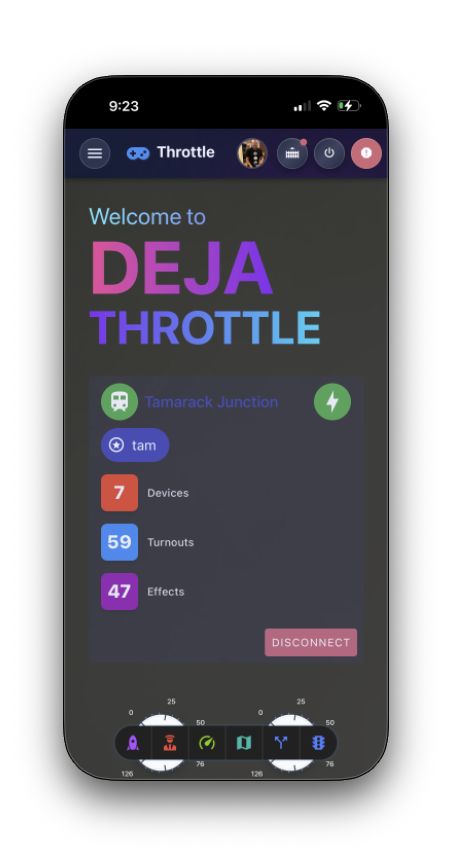
Open the Throttle app and sign in, or tap Try Demo to explore a shared demo layout. Select your layout from the picker — the app remembers your choice for next time.
Once connected, the header shows a green status indicator. For more details, see Connection Setup.
➕ Add a Locomotive
On the Throttle List, use the Add Throttle card to bring a locomotive into your session — either type its DCC address or pick one From Roster.
The locomotive is added to your active throttle list and ready to control. See Roster for more on managing your locomotive collection.
🚂 Select a Locomotive

The Throttle List shows all active locomotives as tiles. Tap any tile to open its full throttle controls.
You can drag to reorder tiles or swipe between locomotives. Learn more at Throttle List.
🎚️ Control Speed & Direction
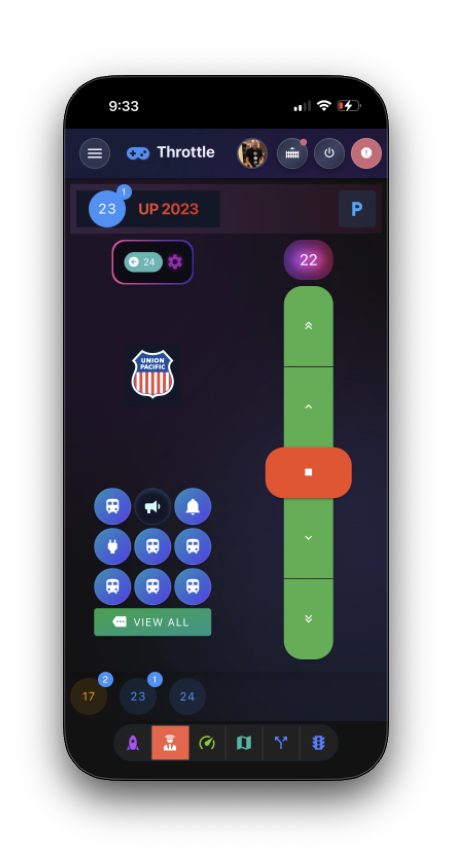
Use the speed controls to set your locomotive's speed and direction. You can pick your preferred control style — buttons, a slider, a skeuomorphic dashboard, or a ProtoThrottle-style lever faceplate — in Settings → Throttle → Throttle Type.
The emergency stop button in the header halts all locomotives instantly. For the full control reference, see Throttle Control.
🔊 Use Functions
Tap the speed dial button on the throttle screen to reveal function controls — headlights, bell, horn, and any decoder-specific features (F0–F31).
Functions toggle on and off individually. The available functions depend on your locomotive's decoder — configure them once in the Cloud app roster (or let ✨ AI Enrich suggest a full mapping from a photo) and they sync everywhere. See Throttle Control — Function Mapping for details.
🔀 Throw Turnouts
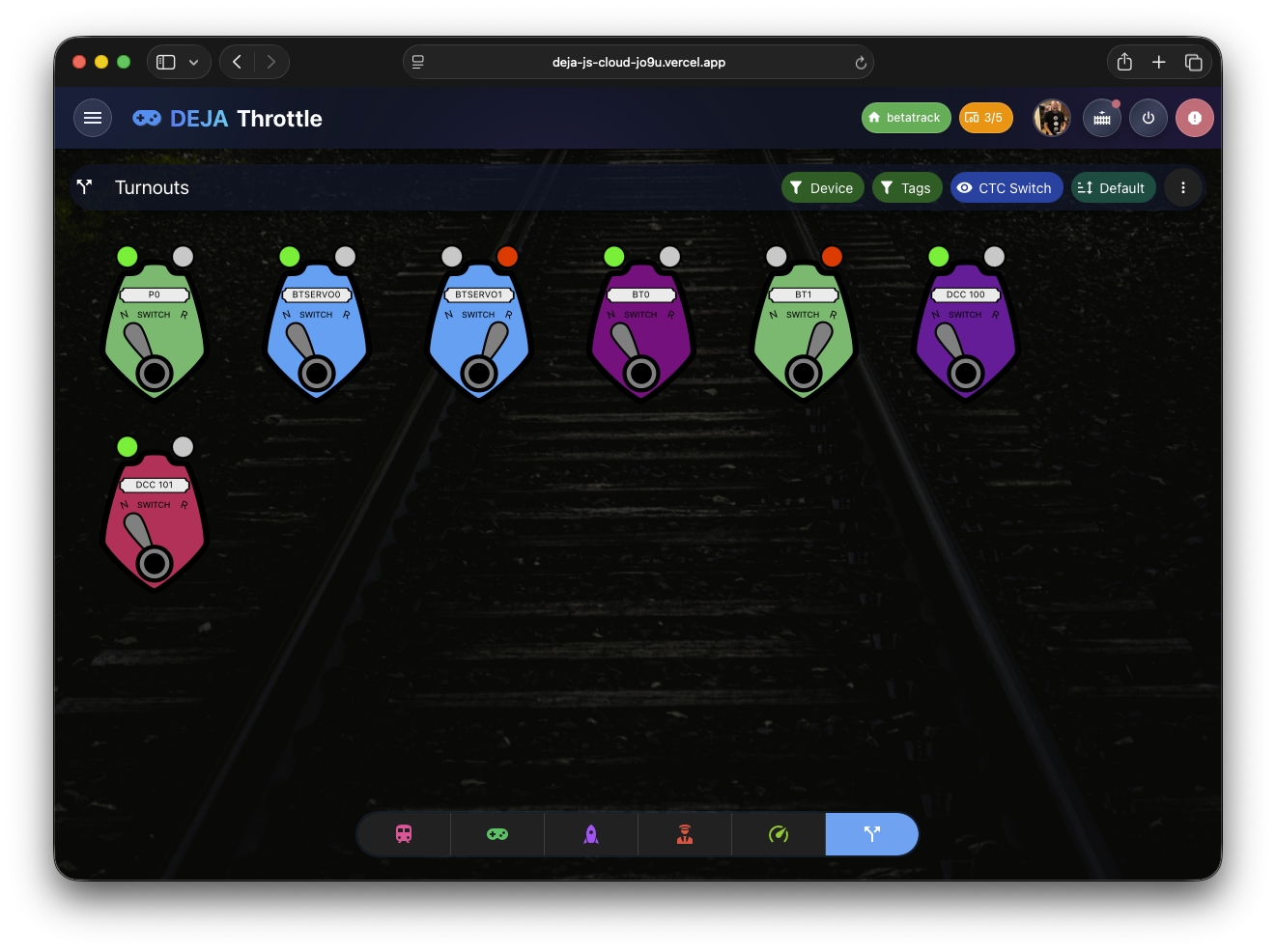
Navigate to the Turnouts page to throw and close track switches. Each turnout shows its current state with a color-coded indicator.
Tap a turnout to toggle it. Changes are sent to the EX-CommandStation in real time. See Turnouts for the full reference.
🛤️ Fire a Route

Routes let you throw multiple turnouts in sequence with a single tap. Open the Routes page and tap a route to execute it.
A progress bar shows the sequence as each turnout fires. See Routes for more on route configuration and execution.
✨ Try Effects
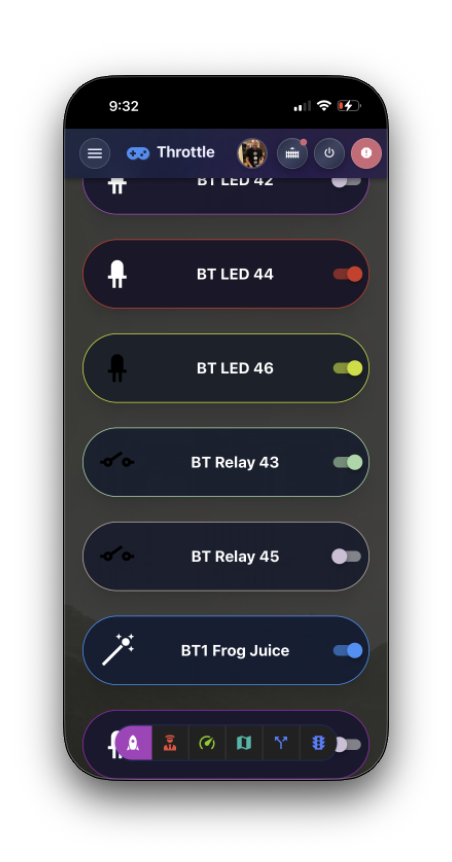
The Effects page gives you control over LED lighting and relays on the Effects tab, WLED scenes on the WLED tab, and your sound library on the Sounds tab. Toggle any effect card, scene, or sound to trigger it on your layout.
Effects and WLED scenes are configured in the Cloud app and controlled here during sessions. See Effects for the full breakdown of all three tabs.
🗺️ What's Next?
You've got the basics down. Here's where to go from here:
- Conductor Mode — a three-pane layout for full-station operation on large screens
- Track Diagram — an interactive, pan-and-zoom diagram of your layout with live turnout and signal state (feature-gated)
- Signals — monitor and control signal aspects across your layout
- Settings — customize the footer bar, switch themes, and configure app preferences
- Home Screen — layout status, active-throttle speedometers, and quick navigation at a glance
- Connect — invite others to your layout with a QR code, room code, or invite link
That's it — you're running trains. 🎉