
Locomotive Roster
The Roster section is where you build and maintain your digital locomotive fleet. Each locomotive entry stores its DCC address, display name, road name, color, photo, sound capability, decoder function mappings, and consist configuration. Any change you make here is immediately available to the Throttle app for real-time control.
Roster List
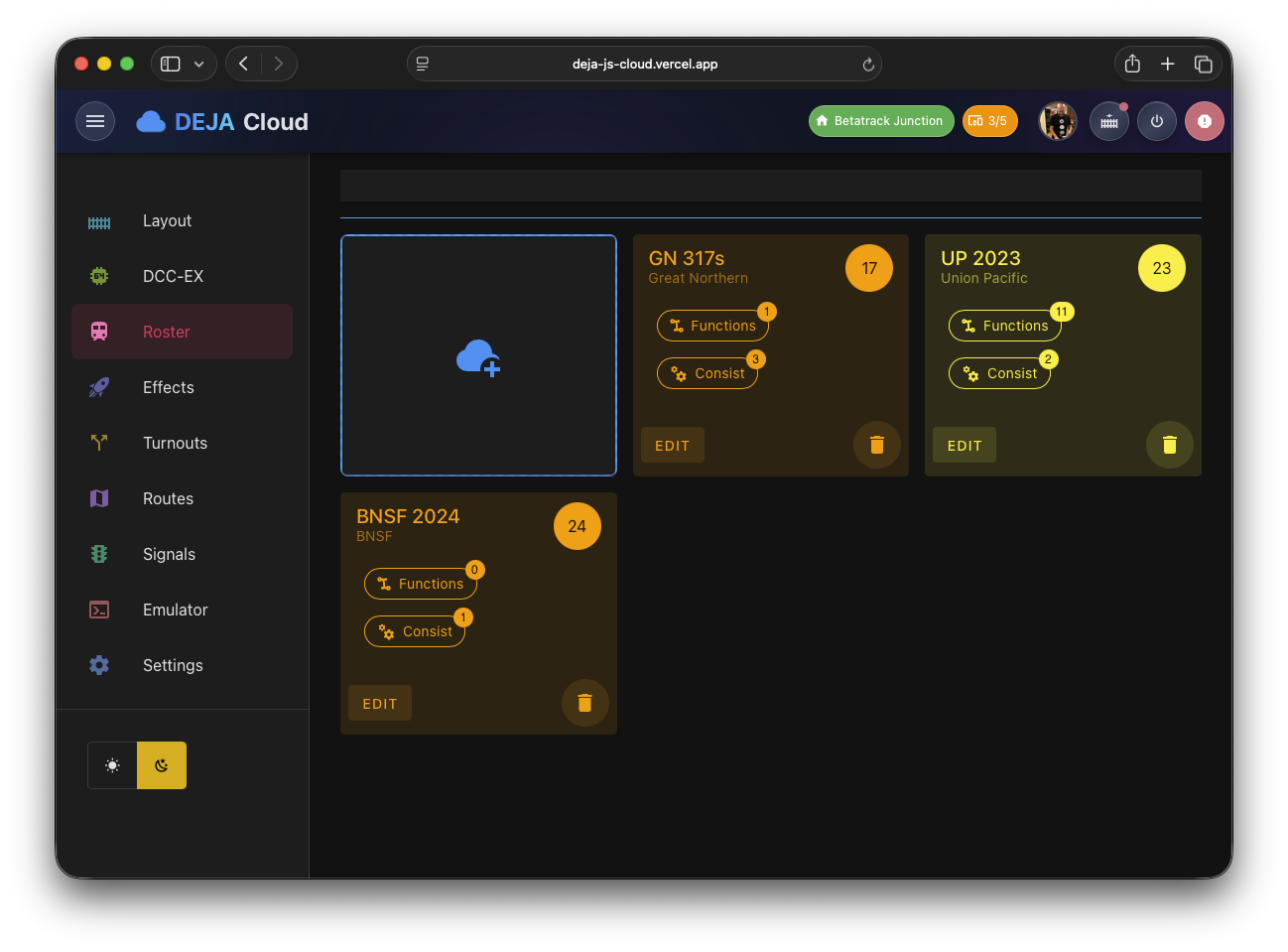
The main roster view displays your locomotives in a responsive card grid (single column on mobile, two columns on tablet, three on desktop). Each card shows the locomotive's photo (or a placeholder silhouette if none has been added), name, DCC address, road name, and assigned color. Cards animate smoothly in and out as locomotives are added or removed.
A view switcher lets you change how the roster is displayed:
| View | Description |
|---|---|
| Card (default) | Photo cards with name, address, road name, and color |
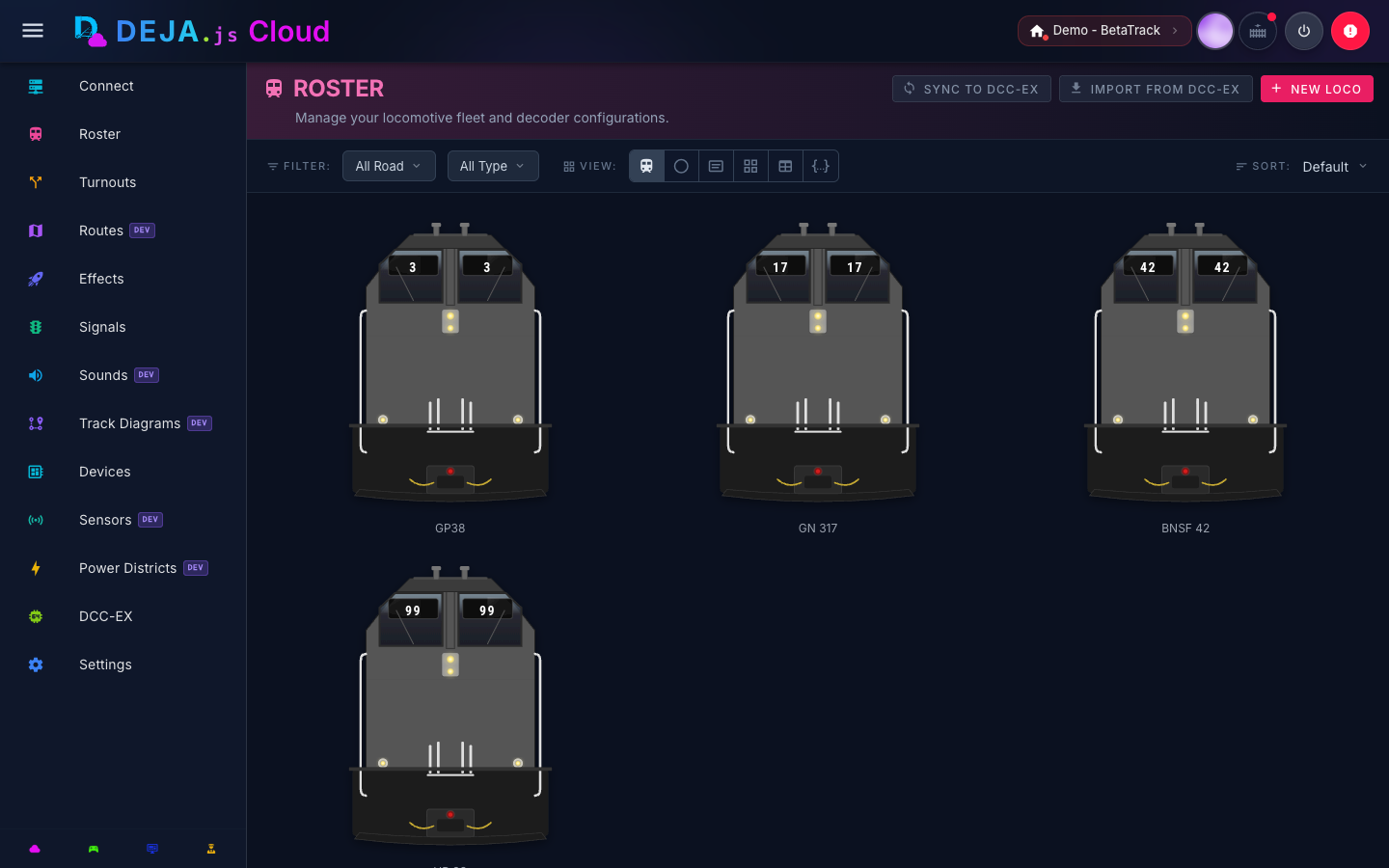
| Cab | Type-correct front-of-cab SVG illustrations -- see Roster Cab View below |
| Avatar | Compact circular avatars, useful for scanning a large roster quickly |
| Plate | Locomotive number plates, styled like the throttle's number board |
| Table | Dense tabular list |
An "Add" tile appears at the beginning of the grid as a visual prompt to add new locomotives.
If no locomotives have been added yet, an empty state is shown with the message "No Locomotives Yet" and a description of what the roster is for. It includes quick-links highlighting key capabilities: programming DCC decoders, configuring functions and lights, and building consists.
Roster Cab View
Switch the roster view to Cab to see each locomotive rendered as a type-correct front-of-cab SVG illustration instead of a photo card -- useful when you haven't uploaded photos yet, or just want a clean, uniform roster board. The illustration automatically matches the locomotive's type:
- Steam locomotives render a boiler-front illustration (smokebox, headlight, number plate).
- Electric locomotives render a pantograph-equipped cab front.
- Diesel (and any other type) locomotives render a wide-cab diesel front, styled after modern GE/EMD road units.
Each illustration is tinted using the locomotive's roadname livery colors (or its assigned color, if no roadname is set) and shows the DCC address on the number boards. If a roadname has a logo image configured, it's rendered on the nose in place of lettering. Consist members appear with a badge showing the consist size.
Adding a Locomotive
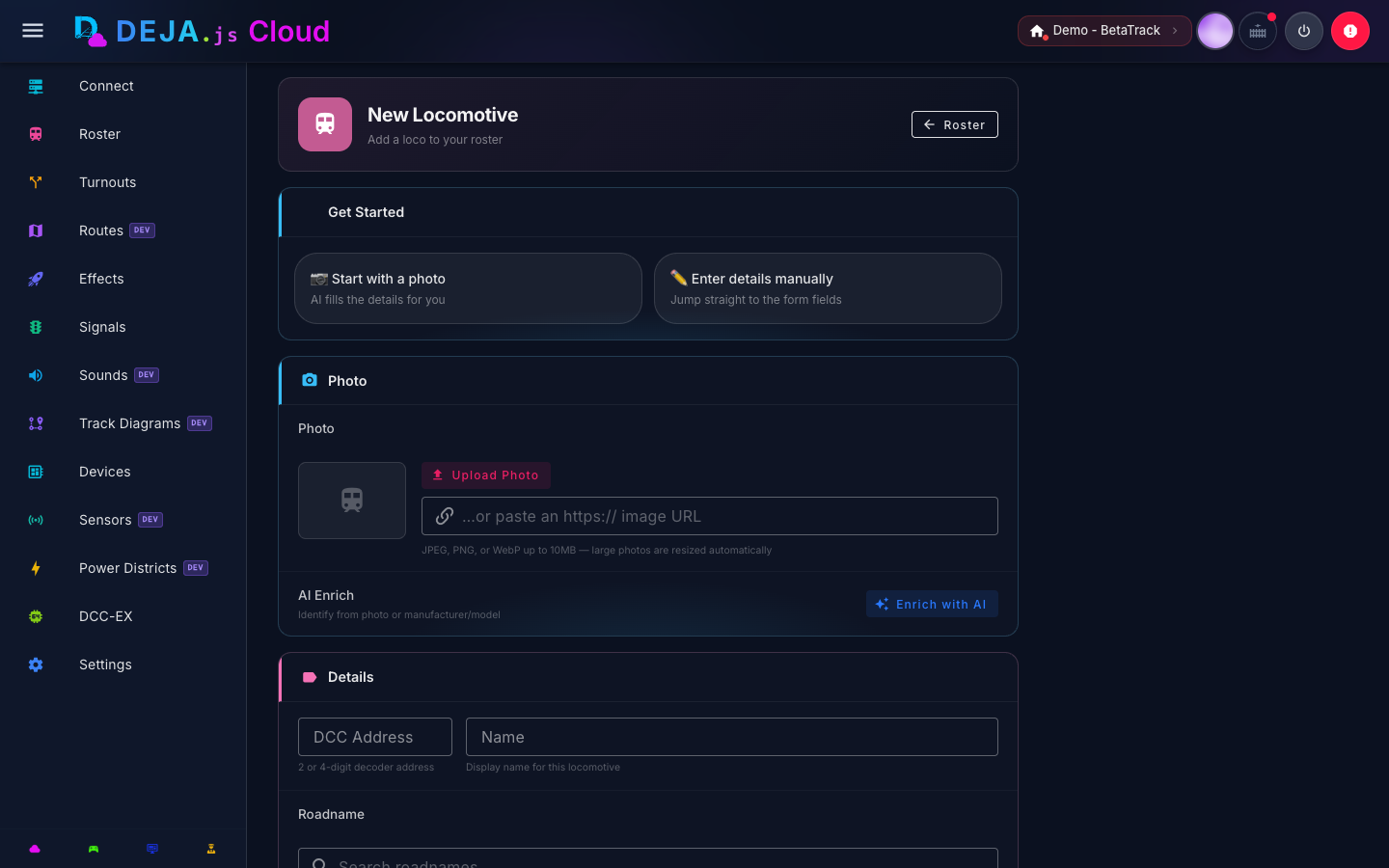
Navigate to the roster and click the Add tile, or go directly to /locos/new. The Add Locomotive page opens with a Get Started chooser offering two entry points -- both scroll to the same form, which is always fully visible below:
- 📷 Start with a photo -- jumps to the Photo section so you can upload an image or paste a URL and let AI fill in the rest.
- ✏️ Enter details manually -- jumps straight to the Details section and focuses the DCC Address field.
Photo
Upload a photo of the locomotive, or paste an https:// image URL. Uploaded photos are automatically resized (JPEG, PNG, or WebP up to 10MB) before being stored. The photo is used as the roster card thumbnail and can be replaced or removed at any time.
The first time you upload a photo, a dialog asks "Does this locomotive have onboard sound?" (Yes / No / Not sure). Answering here -- rather than relying on the default -- makes the AI suggestion that follows more accurate, since sound capability affects the suggested function mapping.
AI Enrich
Click Enrich with AI to identify the locomotive from its photo and/or the manufacturer/model text fields. AI enrichment can run from a photo alone, text alone (e.g. manufacturer "Kato", model "SD40-2"), or both together. A request typically takes 30-60 seconds.
The result appears in an AI Suggestions review panel with a confidence badge (high/medium/low) and a plain-language summary of what was identified. Any assumptions the model made (e.g. "Assumed EMD SD40-2 diesel based on visible cab and truck configuration") are listed explicitly so you know what to double-check.
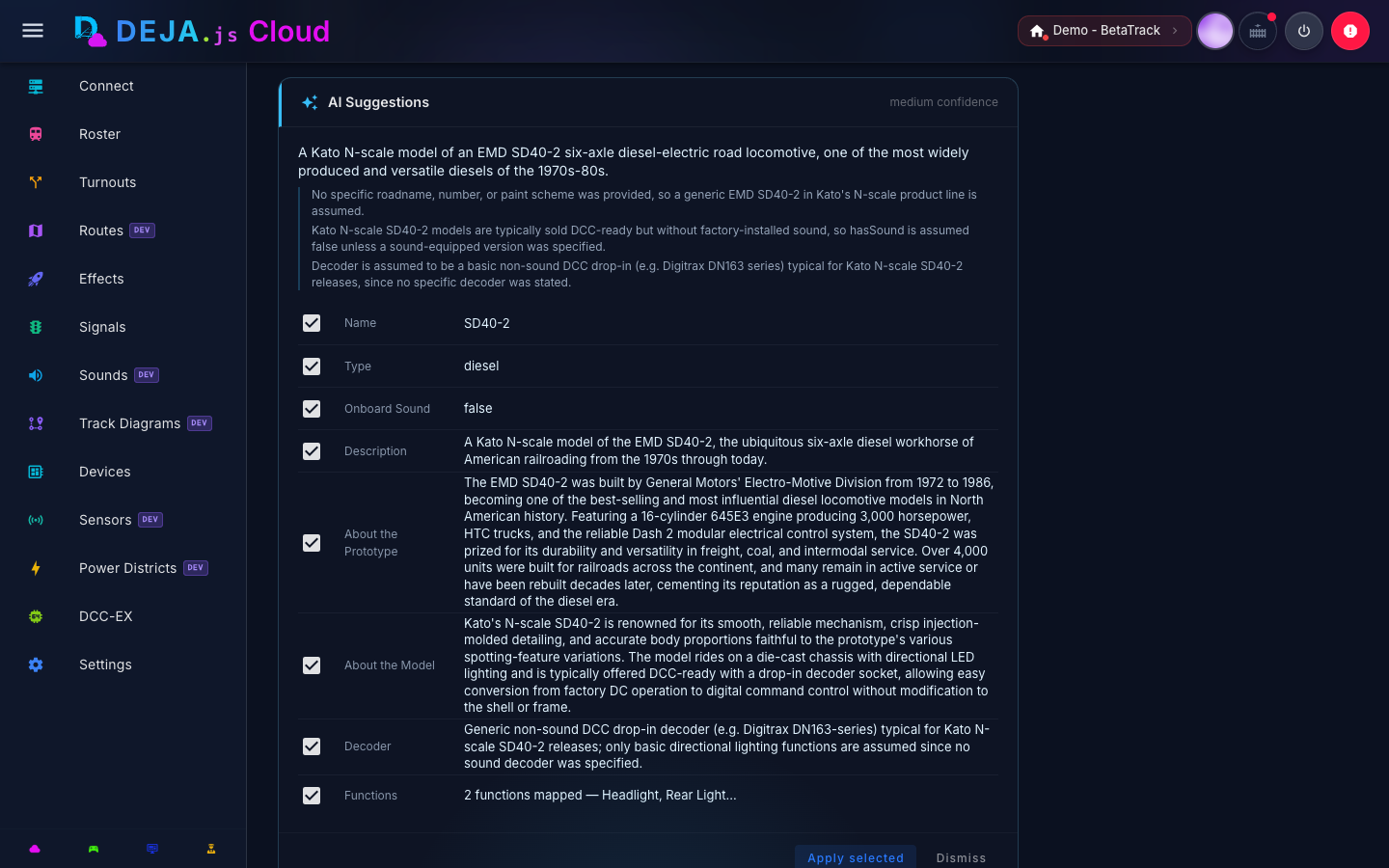
Suggested fields are shown as a checklist -- each row has its own checkbox, and only the box's checked value is applied when you click Apply selected. Nothing is written until you accept it. Suggested fields include:
- DCC address, name, roadname, color, locomotive type
- Sound capability (
hasSound) - Manufacturer, model, decoder
- Description -- a short roster-card summary
- About the Prototype and About the Model -- longer write-ups for the locomotive's detail view
- Function mapping -- a full F0-F31 mapping (labels, icons, favorite/latching flags) shown as its own checkbox row with a preview of the first few mapped functions. If the locomotive already has a customized function mapping, this checkbox defaults off so you don't accidentally overwrite your work -- a warning note appears if you check it anyway.
Click Apply selected to fill in only the checked rows, or Dismiss to discard the suggestions entirely.
Editing a Locomotive
Click any locomotive card in the roster grid to open the edit view at /locos/:address. The edit page is divided into sections: identity (including photo and AI enrich), consist management, and function configuration.
Identity
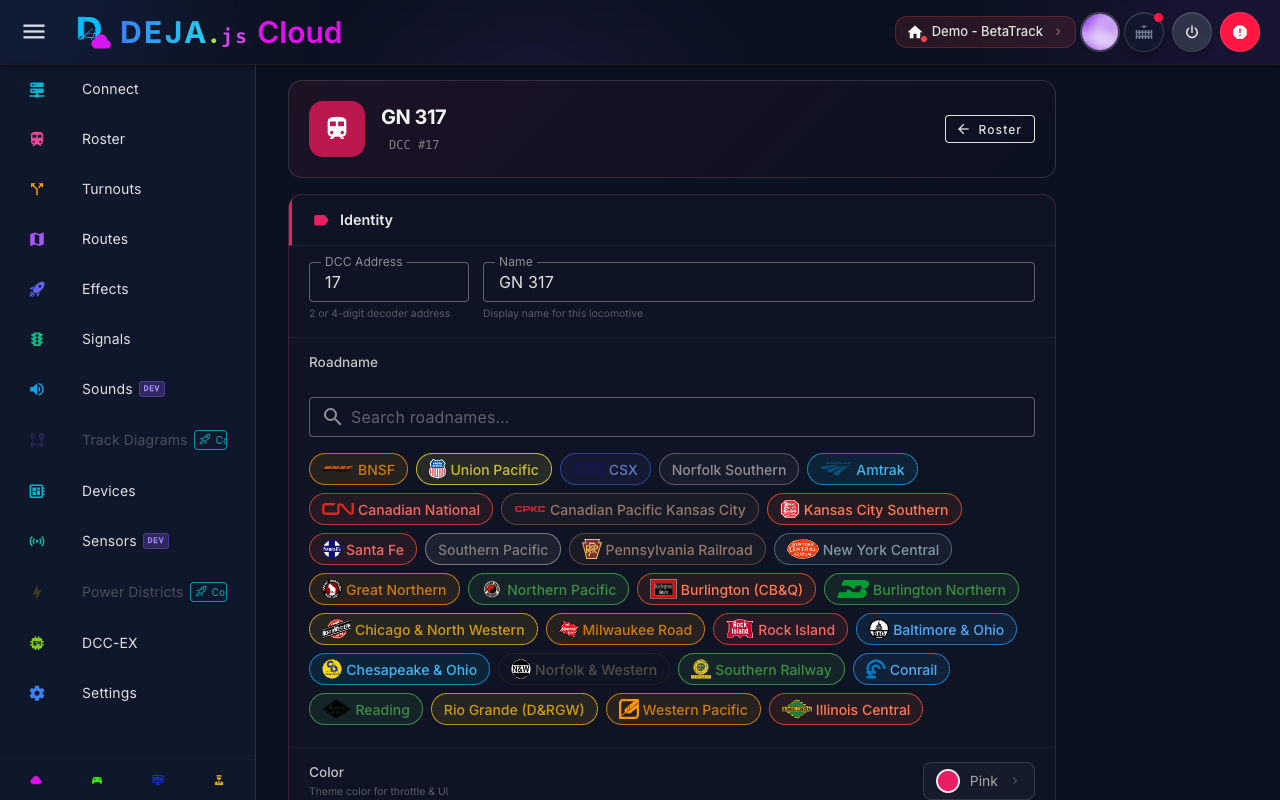
The Identity card contains:
- DCC Address and Name -- editable.
- Road Name -- a chip group selector; see Roadnames below.
- Color -- a color picker button that opens a dialog for choosing a display color, applied to UI elements associated with this locomotive throughout all apps.
- Photo -- upload or paste an image URL, same as on Add Locomotive. Uploading a new photo automatically re-runs AI Enrich using the fresh image.
- Manufacturer / Model / Decoder -- free-text fields.
- Description, About the Prototype, and About the Model -- editable write-ups, either typed by hand or filled in by AI Enrich.
- AI Enrich -- the same suggestion review panel described above, usable at any time to re-identify or fill in gaps.
- Locomotive Type and DC Track / Locomotive and Onboard Sound toggles.
Click Save to persist identity changes, or use the ← Roster button beside it to head straight back to the roster grid.
Consist Management
Below Identity is the EZ Consist section. If the locomotive has consist members, they are displayed as a row of chips showing each unit's DCC address and direction indicator. The lead locomotive is marked with a left-arrow icon, and trailing units show directional arrows based on their orientation (forward or reversed).
Tap the consist indicator to open a dialog where you can add or remove consist members. The consist editor allows you to:
- Add locomotives by DCC address
- Set each unit's direction (forward or reversed relative to the lead unit)
- Remove units from the consist
Changes to the consist are saved along with the lead locomotive.
Function Configuration
The Functions card embeds the same Function Mapping editor used on Add Locomotive. Changes are local until you click Save (enabled only once a modification is detected).
Deleting a Locomotive
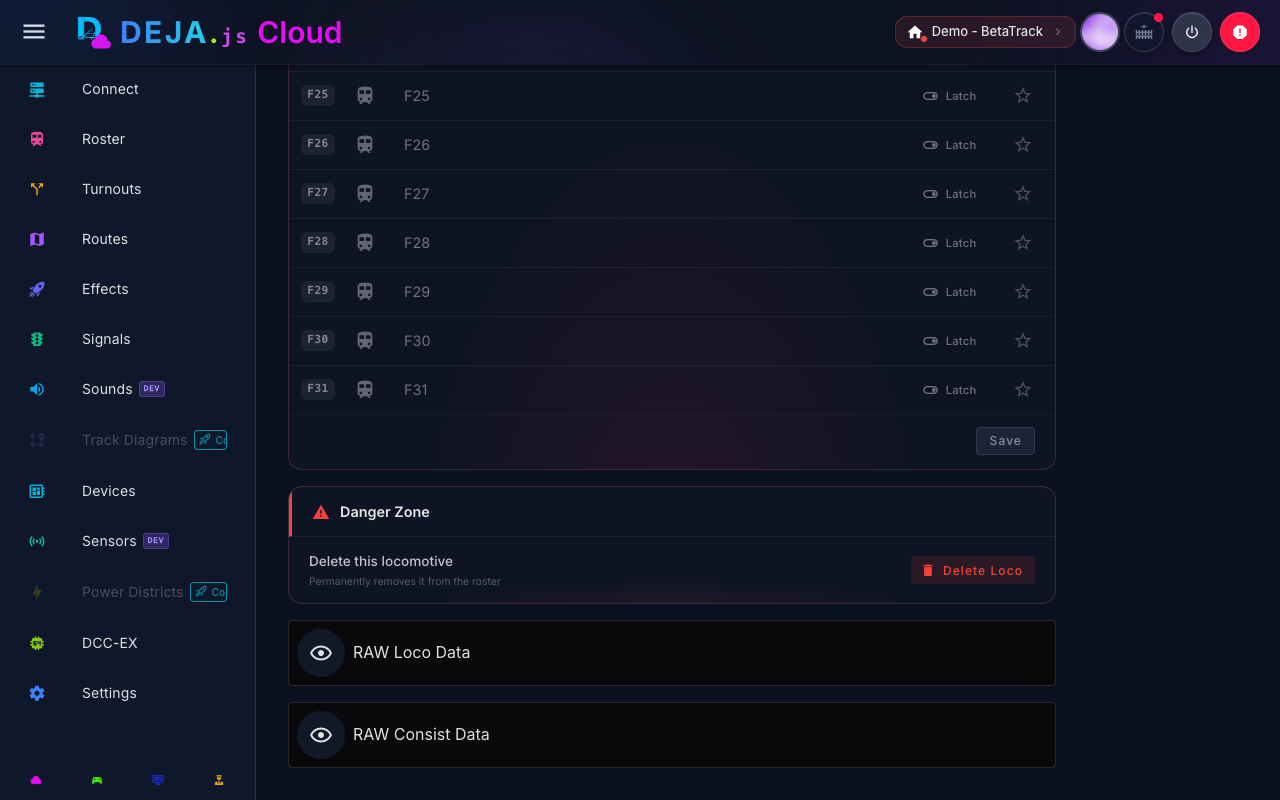
At the bottom of the edit page, a red-accented Danger Zone section holds the delete action. Deleting is a deliberate two-step: click Delete Loco, then confirm — a stray tap can't wipe out an entry. Confirming permanently removes the locomotive (including its consist configuration) from the roster and returns you to the roster grid. Every throttle in the room updates immediately.
Function Mapping
Every locomotive has a full F0-F31 function mapping, editable inline with no accordions or expand states -- everything is a single click away:
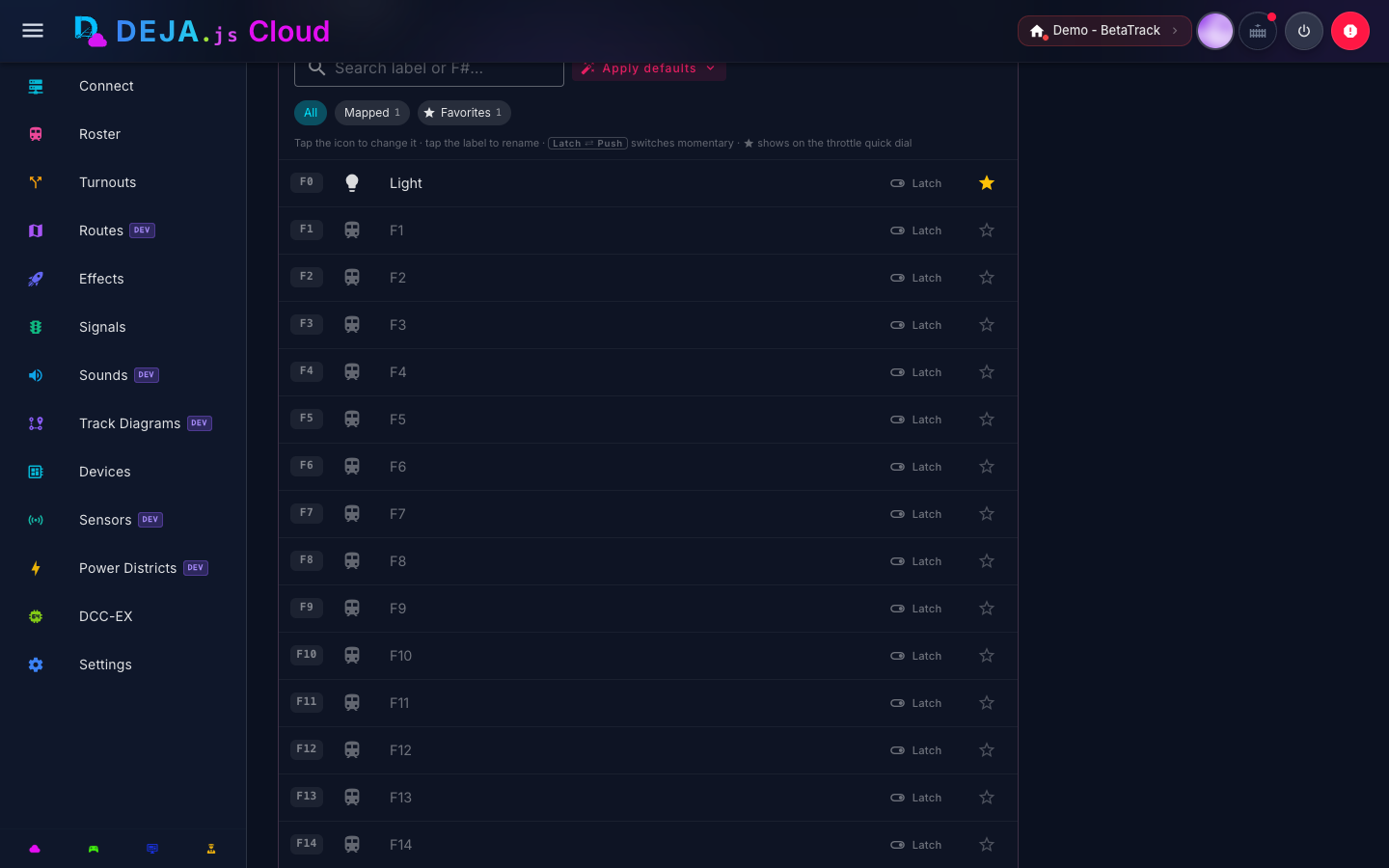
- Icon -- every row always shows an icon (a sensible default when unmapped). Tap it to open an icon picker dialog.
- Label -- tap the label to turn it into a combobox; type a custom name or pick from a list of common function names (Headlight, Bell, Horn, Coupler, etc.).
- Latch / Push -- an inline toggle button switches the function between latching (tap on, tap off -- e.g. headlight) and momentary/push (active only while held -- e.g. horn, coupler).
- Favorite (⭐) -- one tap adds or removes the function from the throttle's quick-access speed dial.
- Search and filters -- a search box filters by label or F-number; chip filters narrow the list to All, Mapped, or Favorites, each with a live count.
- Apply defaults -- a preset menu offers Sound loco defaults (light, bell, horn, coupler, etc.) or Basic loco defaults (headlight only), replacing the current mapping in one click.
The mapper is shared between the Cloud app and the Throttle app's all-functions dialog -- see Throttle Control -- Function Mapping for the throttle-side editing experience.
Roadnames
The road name selector offers 77 American railroads, covering both modern Class I/regional roads and historic fallen flags, each with a default livery color. The selector is searchable -- type a full name, abbreviation, or common reporting mark alias (e.g. "ATSF", "Santa Fe", or "Warbonnet" all find Santa Fe; "BN" finds Burlington Northern) to filter the chip list. Your current selection always stays visible even if it doesn't match the search text.
Related Pages
- Cloud App Overview -- Navigate back to the main Cloud app guide.
- Throttle Control -- Function Mapping -- Edit function mappings from the Throttle app.
- Turnouts Configuration -- Set up turnouts for your layout.
- Routes Configuration -- Define automated turnout sequences.