
Throttle App
The Throttle app is the primary user-facing application in the DEJA.js system. It gives model railroad operators real-time control of locomotives, turnouts, signals, routes, and effects from any device with a modern web browser.
Operators can run a single train with detailed throttle controls, manage multiple trains simultaneously in a grid view, or use the Conductor view for full-station operation on large screens. Every control takes effect in real time, sent straight through to your EX-CommandStation.
Key Features
- Speed and direction control for individual locomotives using button controls (mobile) or slider controls (desktop/tablet).
- Function buttons (F0 through F31) for headlights, horns, bells, decoder sounds, and decoder-specific features via a speed dial overlay, with an in-place Edit mode for remapping icons, labels, and favorites without leaving the throttle.
- Turnout management with throw/close controls and color-coded state indicators.
- Route execution through interactive track maps or a route list, with a visual timeline showing turnout sequences and a progress bar during execution.
- Consist support for linking multiple locomotives together, visible directly on the throttle screen.
- Multi-throttle operation with a grid view of all active throttles, drag-to-reorder tiles, and a floating action button to add locomotives from the roster.
- Conductor view combining throttle list, active throttle, and turnout controls in a three-pane layout designed for operator stations.
- Signal monitoring with red, yellow, and green aspect indicators.
- Effects control for toggling lights and relays, activating WLED scenes, and playing sounds from your library on your layout.
- Swipe navigation between locomotives on the throttle screen.
- Command Menu (⌘K) — drive your running locomotives in place, adjust page-specific settings, and jump to any action, from any page.
- Emergency stop accessible from the app header on every page.
- Theme switching between light and dark modes.
- Try Demo access for exploring the app without setting up your own layout.
Navigation Structure
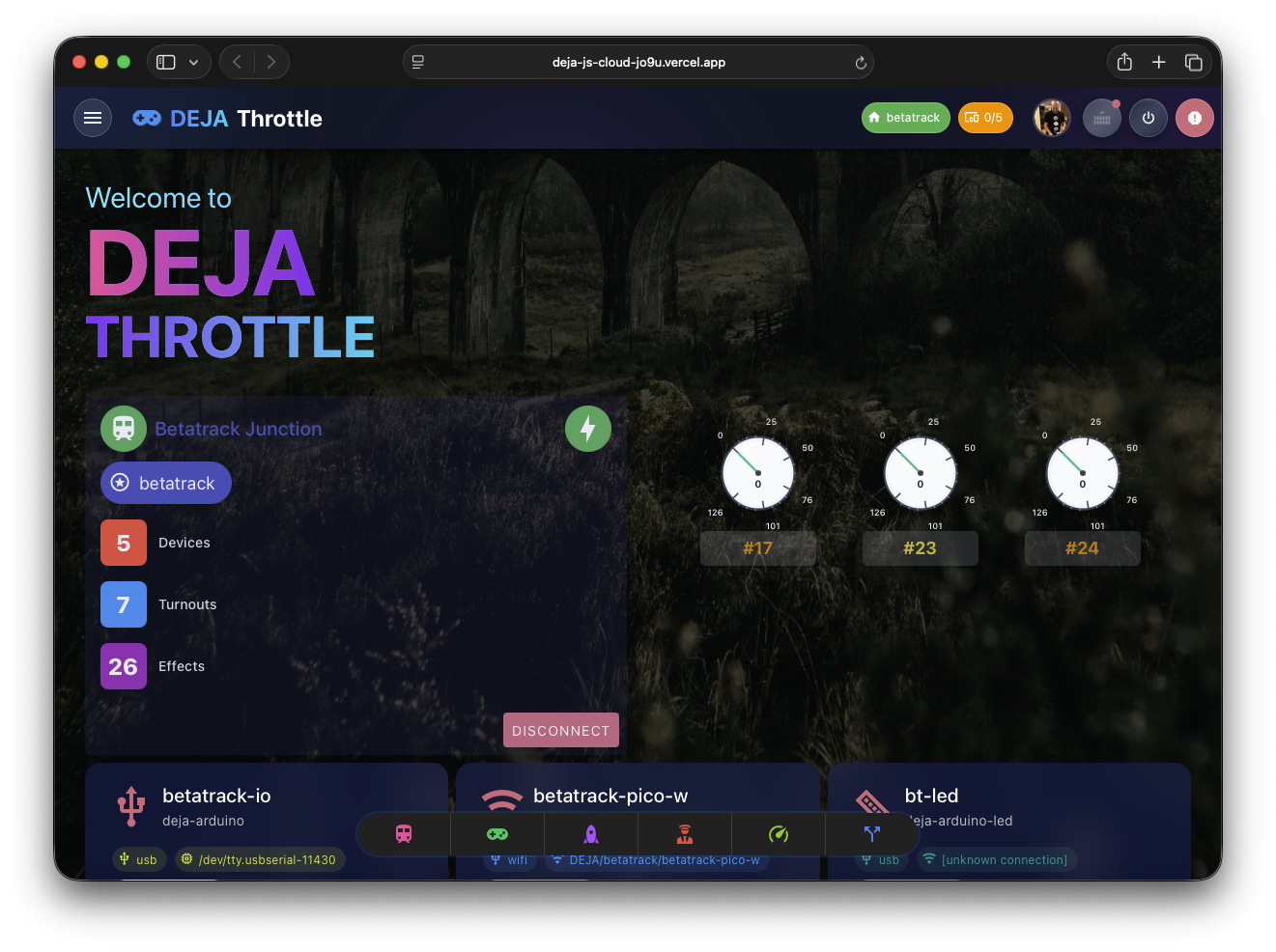
The Throttle app uses a pinned navigation bar at the bottom of the screen -- four labeled destinations you choose, plus a More sheet that opens the full app map. Long-press the bar to edit your pins in place; every page also sets a proper title, so browser tabs are distinguishable.
Pages
| Page | Route | Description |
|---|---|---|
| Home | / | Operating dashboard — layout status, device connection, active-throttle speedometers, quick nav, and stats |
| Throttle Control | /throttle/:address | Full single-locomotive control with speed, functions, consist, and emergency stop |
| Throttle List | /throttle-list | Grid view of all active throttles for multi-train operation (/throttles still works as a redirect) |
| Command Menu | (⌘K overlay) | Active-cab control, page settings, and search — opened from the header or ⌘K |
| Conductor View | /conductor | Three-pane operator station layout with throttle list, active throttle, and a configurable panel |
| Effects | /effects | Lights and relays, WLED scenes, and sound playback (Effects / WLED / Sounds tabs) |
| Routes | /routes | Card-based list of predefined routes to run |
| Track Diagram | /track-diagrams | Interactive layout diagram with pan/zoom, live turnout and signal state, and tap-to-route (feature-gated) |
| Signals | /signals | Signal monitoring and control |
| Turnouts | /turnouts | Track switch throw/close controls |
| Roster | /locos | Locomotive roster browser |
| Connect | /connect | Layout selection, device connection, and joining a layout by QR/code |
| Devices | /devices | Device management and connection status |
| Programming | /programming | CV programming for decoders (feature-gated) |
| Settings | /settings | App preferences and bottom-nav customization |
| Select Layout | /select-layout | Layout picker for multi-layout setups |
| Login | /login | Authentication screen |
| Join | /join | Public, no-login page for a guest to join a layout by QR code, room code, or request |
Most pages require you to be logged in and have a layout selected before they are accessible. The Login page and the Join page are always available. Routes, Track Diagram, and Programming are additionally gated behind feature flags.
App Shell
The Throttle app shell includes three persistent UI elements visible across all pages:
- AppHeader -- displays the app name, layout power toggle, emergency stop button, device connection status, and user profile. The ⌘K menu button (top-left) opens the Command Menu -- drive active cabs in place, adjust page settings, and search-jump to anything. On desktop it's a
Menu ⌘Kpill; on touch devices, a compact ⌘ icon. - Pinned Navigation Bar -- a labeled pill at the bottom of the screen with 4 pinned destinations plus a More button. Defaults: Conductor, Throttles, Turnouts, and one free + slot. Long-press the bar to edit -- wiggle mode lets you unpin (✕) and drag to reorder; pins persist per browser. Pins can also be managed from the More sheet or Settings.
- More Sheet -- the More button opens a bottom sheet with every section of the app as a labeled tile. Tap to navigate, long-press to pin/unpin an item to the bar, and use the + slot's pin mode to fill an empty slot directly.
Page transitions use a fade animation when navigating between views.