
Turnouts
The Turnouts screen (/turnouts) lists all track switches (turnouts) configured for your layout and lets you throw or close them. Turnouts control which path a train takes at a junction, and their state is reflected in real time across all connected clients.
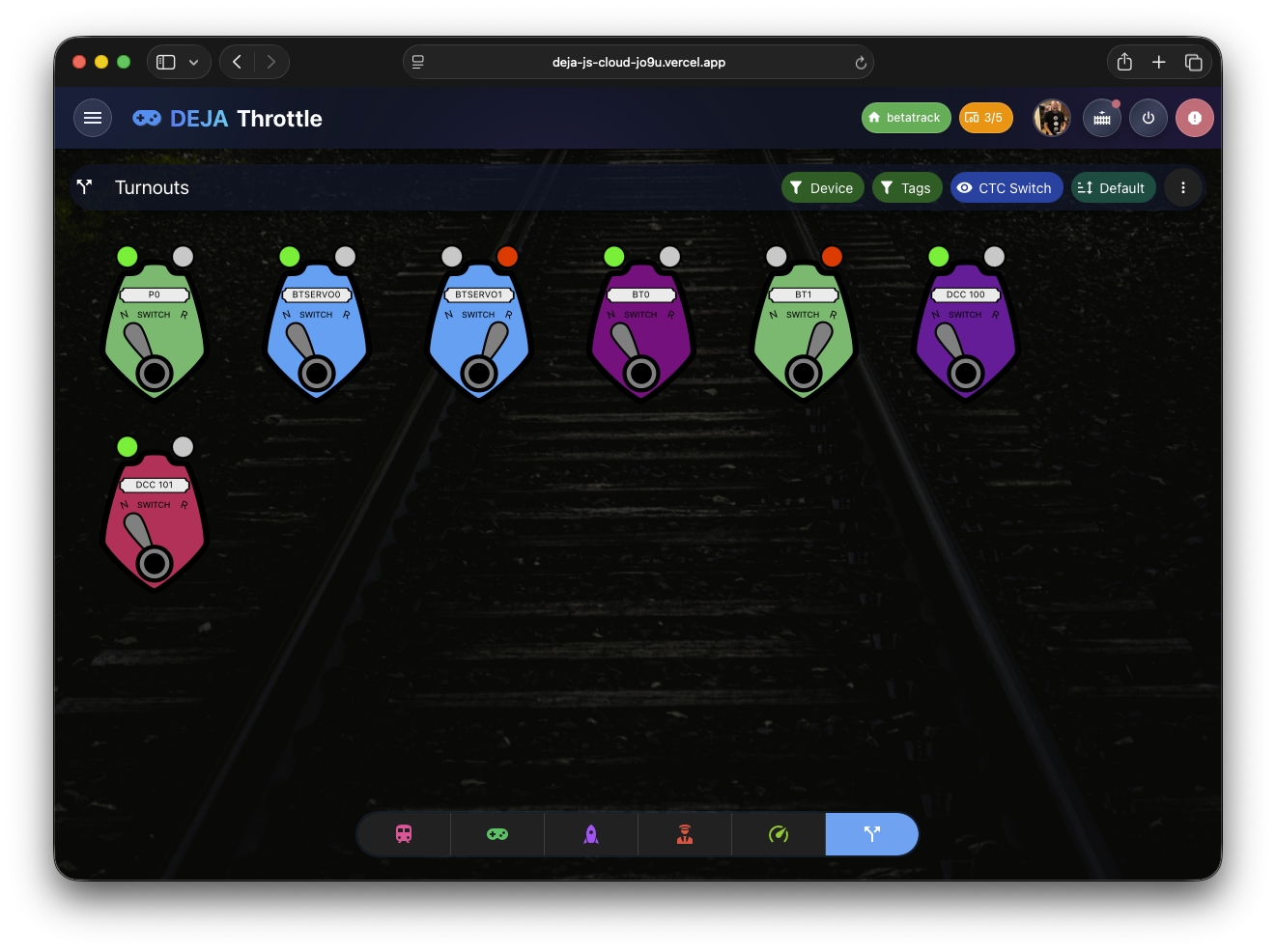
CTC Switch View (Default)
The default view renders each turnout as a CTC (Centralized Traffic Control) lever switch -- an SVG component styled to resemble the panel switches used in real railroad dispatch offices.
Each CTC switch displays:
- Shield shape with the turnout's configured color as the background.
- Turnout name in a labeled plate at the top of the switch.
- "SWITCH" label below the name plate.
- Lever handle that visually rotates between two positions. The lever swings 55 degrees when toggled, with a smooth animation.
- N and R indicators -- two circular lights labeled "N" (Normal/Straight) and "R" (Reverse/Divergent):
- When the turnout is in the straight (normal) position: the R indicator lights green and the N indicator is gray.
- When the turnout is in the divergent (reverse) position: the N indicator lights red and the R indicator is gray.
Tapping anywhere on the CTC switch toggles the turnout between its two states. A 3-second cooldown prevents rapid repeated toggles while the physical turnout motor moves.
CTC switches are responsive, scaling from about 96px wide on small screens to 144px on medium and larger screens.
Alternative Views
The Turnouts list supports five view modes, selectable from the view menu:
| View | Description |
|---|---|
| CTC Switch | The default SVG lever switch described above. |
| Switch | A Vuetify toggle switch component for each turnout. |
| Button | Turnout control rendered as tappable buttons. |
| Card | A detailed card view (described below). |
| Table | A compact tabular view with all turnout properties in rows. |
Card View
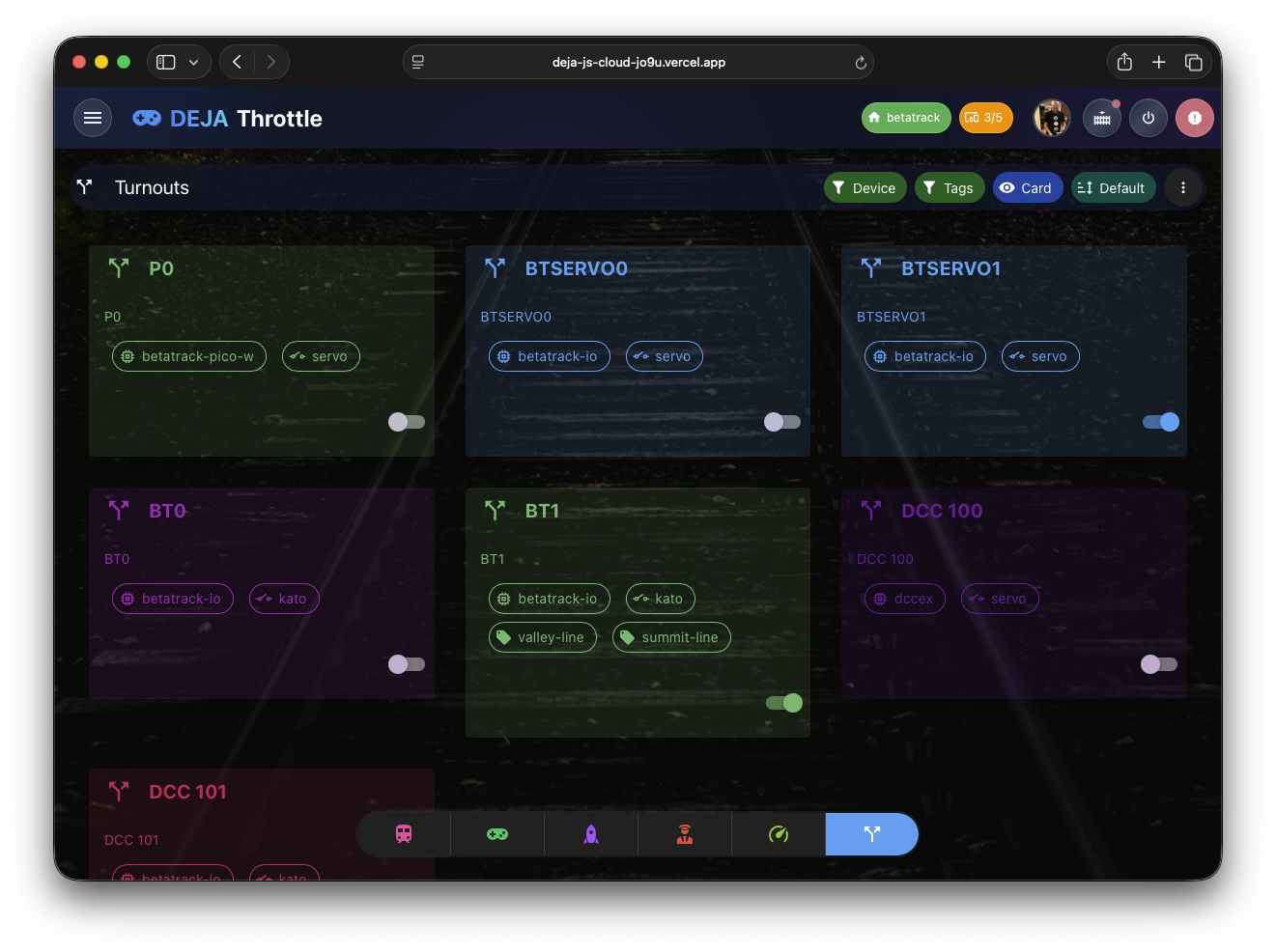
In card view, each turnout is displayed as a tonal card showing:
- Icon -- a split-track icon for servo turnouts or an electric switch icon for other types.
- Turnout name and optional description.
- Metadata chips for the target device, turnout type (servo, solenoid, etc.), and any assigned tags.
- Action buttons -- "Set On" and "Set Off" buttons for explicit state control, plus a toggle switch for quick toggling.
The card is disabled and shows a loading indicator while the turnout command is being processed.
Turnout States
Each turnout has two possible states:
| State | Meaning |
|---|---|
| Straight / Normal | The turnout routes trains along the main line (straight through). |
| Divergent / Reverse | The turnout routes trains along the branching track. |
Filtering
The Turnouts list supports filtering by:
- Device -- show only turnouts connected to a specific hardware device.
- Tags -- filter by user-defined tags for organizing turnouts into groups (e.g., by yard, mainline section, or staging area).
Empty State
If no turnouts are configured for the current layout, the screen displays an empty state with a swap icon and the message "No turnouts -- Add turnouts to control track switches." Turnouts are created and configured in the Cloud app.
Turnouts in Other Views
Turnouts also appear in the Conductor View (right pane, alongside any other modules you've enabled) and on the interactive Track Diagram, where they can be toggled directly by tapping the turnout element.