
Cloud App
🚀 New to DEJA Cloud? Start with the interactive Cloud Guide for a visual walkthrough of every feature.
The Cloud app is the central configuration hub for your DEJA.js model railroad layout. It provides a web-based interface for managing every aspect of your layout -- from building your locomotive roster to wiring signals and configuring hardware devices. Every change syncs in real time across all connected apps.

What You Can Do
The Cloud app covers the full lifecycle of layout configuration:
- Locomotive Roster -- Add, edit, and remove locomotives. Upload a photo (or paste a URL) and let ✨ AI Enrich identify the loco and suggest its address, name, roadname, color, description, and a full F0-F31 function mapping -- reviewed and applied field-by-field, never auto-saved. Configure decoder functions with a direct-manipulation mapping editor, browse 77 searchable roadnames, and build multi-unit consists.
- Sounds -- Upload, browse, preview, delete, and play sound files on the layout.
- Turnouts -- Define turnout names, DCC indices, pin assignments, and device bindings. Organize them with tags, reorder with drag-and-drop sorting.
- Routes -- Create automated turnout sequences that throw multiple turnouts in a defined order with a single action.
- Effects -- Set up lights, LEDs, street lights, relays, frog juicers, power switches, and generic pins.
- Signals -- Wire three-aspect signal heads (red, yellow, green) with per-pin configuration and common anode/cathode wiring selection.
- DCC-EX Console -- Send raw DCC commands to the EX-CommandStation, use preset command buttons, and monitor command history in real time over WebSocket.
- Devices -- Register and manage hardware devices, view serial ports, and generate per-device firmware configuration.
- Sensors -- Monitor real-time sensor state from connected hardware and build automation rules.
- Access -- Invite other operators onto your layout with a join link, printable QR poster, or a rotating room code, and approve or remove members.
- Upgrade -- View subscription plans and upgrade to access premium features.
✨ AI-Assisted Roster
Snap a photo of a locomotive and DEJA Cloud identifies it for you. AI Enrich reads the photo (and any manufacturer/model text you've already entered) and suggests a DCC address, name, roadname, color, sound capability, manufacturer/model/decoder, a description, prototype and model write-ups, and a complete F0-F31 function mapping -- all in one pass. Suggestions land in a review panel with per-field checkboxes and disclosed assumptions; nothing is applied until you accept it.
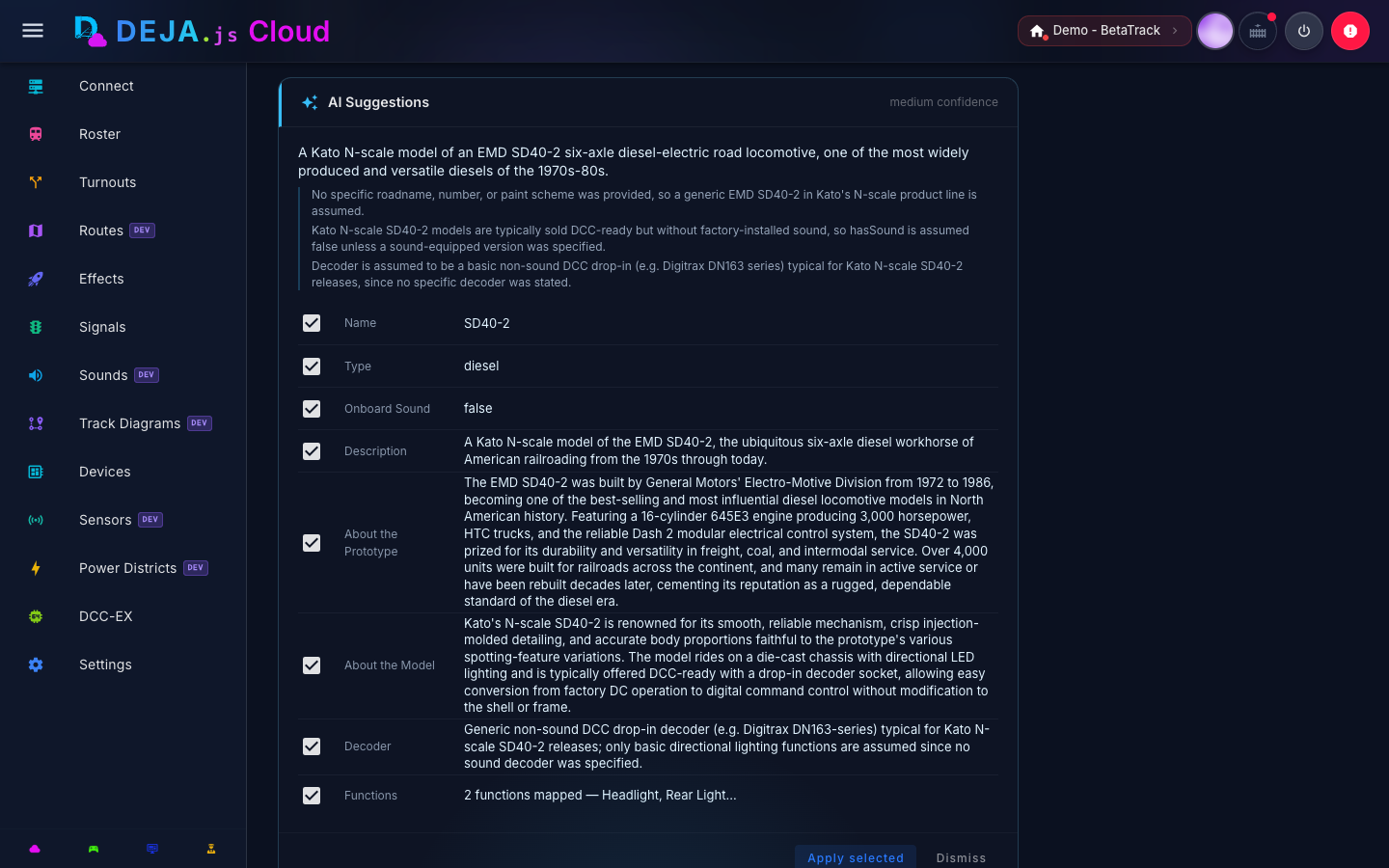
See Locomotive Roster -- AI Enrich for the full walkthrough.
Authentication and Access
The Cloud app requires authentication. Users can sign up with email and password, or sign in with Google or GitHub. After signing up, new users go through a short onboarding wizard:
- Create Account -- Sign up with Google, GitHub, or email and password.
- Name Layout -- Give your layout a name and a unique layout ID.
- Choose Plan -- Select Hobbyist (free), Engineer, or Conductor. Paid tiers then collect payment details (skipped for Hobbyist).
- Install Server -- Get the personalized install command for the DEJA Server, pre-populated with your UID and layout ID.
After onboarding, users are taken to a Setup Complete page that confirms layout creation, offers a quick-add form for their first locomotive, and provides the server install command again. Layouts are automatically approved on creation -- there is no admin approval step.
Users then select a layout to work with. Your selection is remembered so it carries across sessions.
Navigation
The Cloud app uses a sidebar navigation drawer to move between sections. The menu items, from top to bottom, are:
| Section | Icon | Description |
|---|---|---|
| Connect | Server Network | Live connection to your DEJA Server and hardware |
| Roster | Train | Locomotive management with functions and consists |
| Turnouts | Call Split | Turnout configuration with sorting and filtering |
| Routes | Map | Automated turnout sequences |
| Effects | Rocket | Lights, LEDs, relays, and other pin toggles |
| Signals | Traffic Light | Three-aspect signal head wiring |
| Sounds | Volume High | Sound library management and playback |
| Track Diagrams | Map Marker Path | Visual track diagrams |
| Devices | Developer Board | Hardware devices, serial ports, and firmware config |
| Sensors | Access Point | Sensor inputs and automation rules |
| DCC-EX | CPU | Raw command console and real-time command log |
| Settings | Cog | Account, layout, and appearance preferences |
Some sections (Sounds, Track Diagrams, Sensors) are gated by your subscription plan and appear with a badge when not included in your tier.
The header bar shows the layout name and DEJA Server status, along with controls for track power, emergency stop, and user profile access.
Dashboard
The home screen is your layout's connection hub. It shows the layout name and DEJA Server status once at the top, a connection panel listing your registered devices with quick connect/disconnect controls and port selection, a live command-activity chart, and a QR code to launch the Throttle app on a mobile device.
If you haven't installed and started your DEJA Server yet, the dashboard shows a "Set up your railroad" card that walks you through connecting.
Changes made in the Cloud app are immediately visible in the Throttle, Monitor, and Tour apps — all data syncs in real time.
Accessing the Cloud App
The Cloud app is available at cloud.dejajs.com. Log in with your DEJA Cloud account and select a layout to get started.
Next Steps
- Cloud Guide -- Interactive visual walkthrough of every feature.
- Locomotive Roster -- Add and configure your locomotives.
- Devices -- Register and manage hardware controllers.
- Connect -- Manage live connections to your hardware.
- Turnouts -- Define and organize your layout switches.
- Effects -- Set up lights, LEDs, relays, and other pin toggles.
- Sounds -- Upload and play back audio from the sound library.
- Signals -- Wire three-aspect signal heads.
- Routes -- Create automated turnout sequences.
- Sensors -- Monitor sensors and build automation rules.
- Layout Configuration -- Tags, ports, modules, and layout metadata.
- DCC-EX Console -- Send commands directly to your EX-CommandStation.
- Settings -- Account, theme, subscription, and server config.