
 DEJA.jsThrottle
Walk through a complete session — connect to your EX-CommandStation, add a locomotive, control speed and direction, throw turnouts, and trigger effects.
Video walkthrough coming soon
Make sure you've completed the Getting Started guide — your server should be running and your EX-CommandStation connected.
Navigating the App
Two persistent navigation elements are visible on every screen.
🔝 Header Bar
System-level controls and status at a glance.
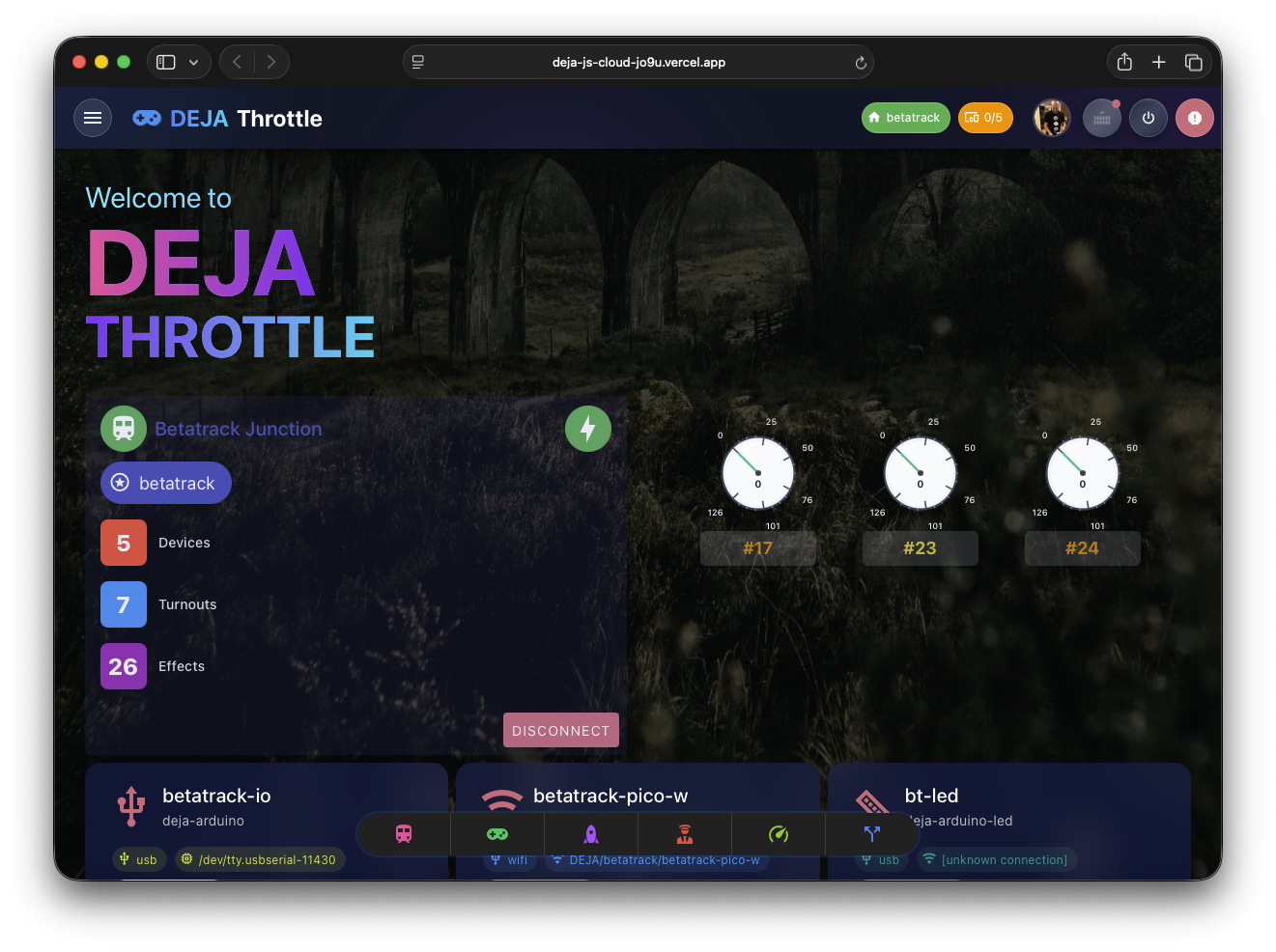
🔽 Bottom Navigation
Color-coded icon buttons for quick access. Customize which items appear in Settings.

Connect
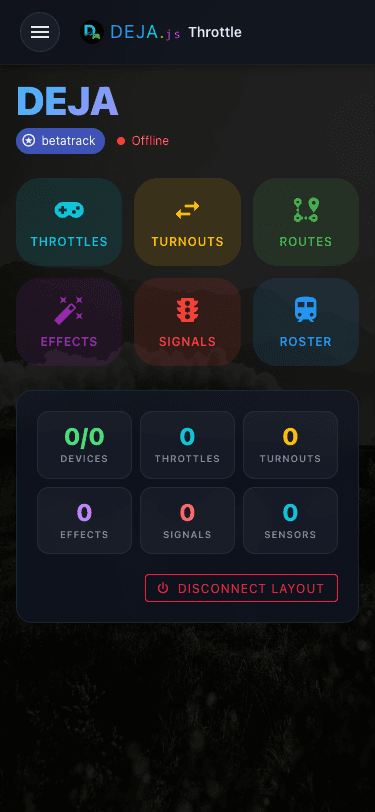
Open Throttle in your browser. The home screen shows your EX-CommandStation's connection status. Green means you're ready to go.
Add a Locomotive
Tap the + button on the throttle list to add a locomotive to your session. Enter the DCC address and a name.
☁️ Configured in DEJA Cloud
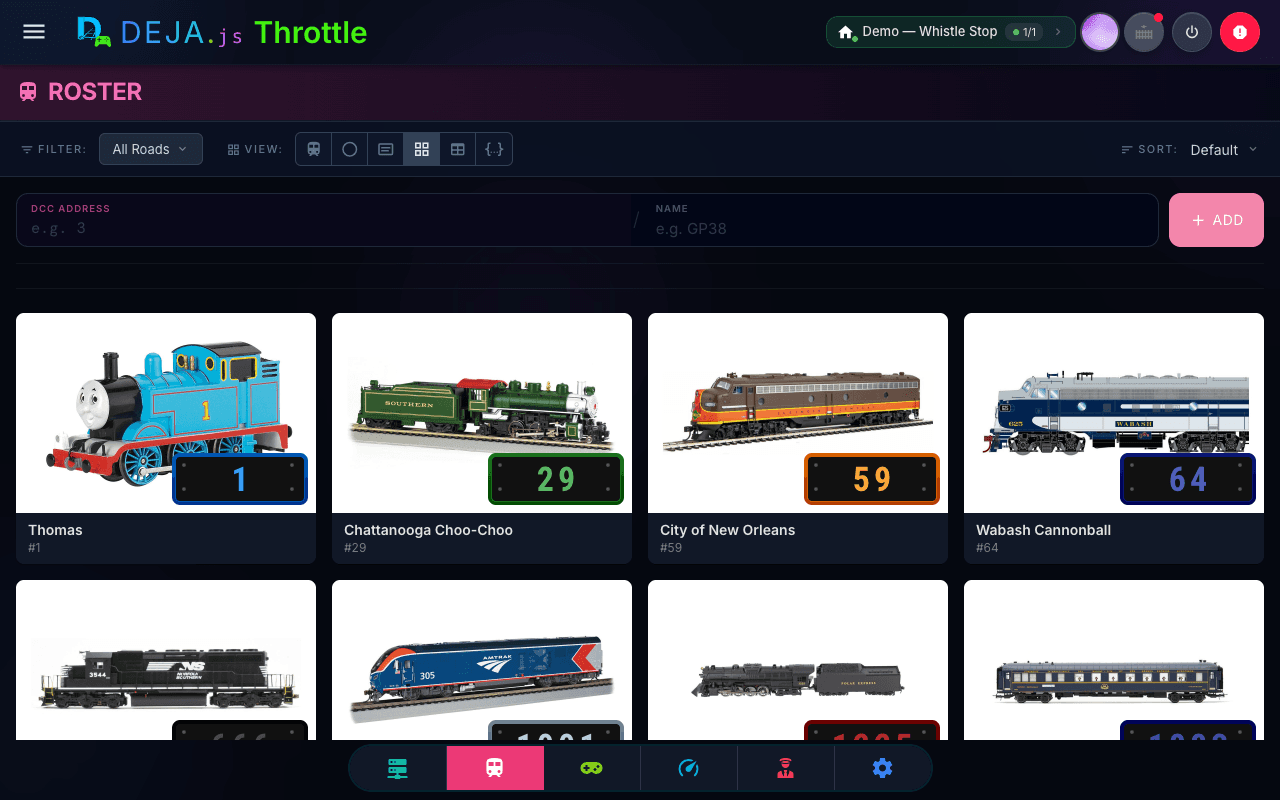
Browse Your Roster
The Roster screen shows every locomotive on your layout. Tap one to jump straight into full throttle control.
Select a Throttle
The throttle list shows all locomotives in your session. Tap one to open full throttle control.
Build a Consist with EZ Consist
Link multiple locomotives into one consist and drive them as a single train — no CV programming, no decoder address math.
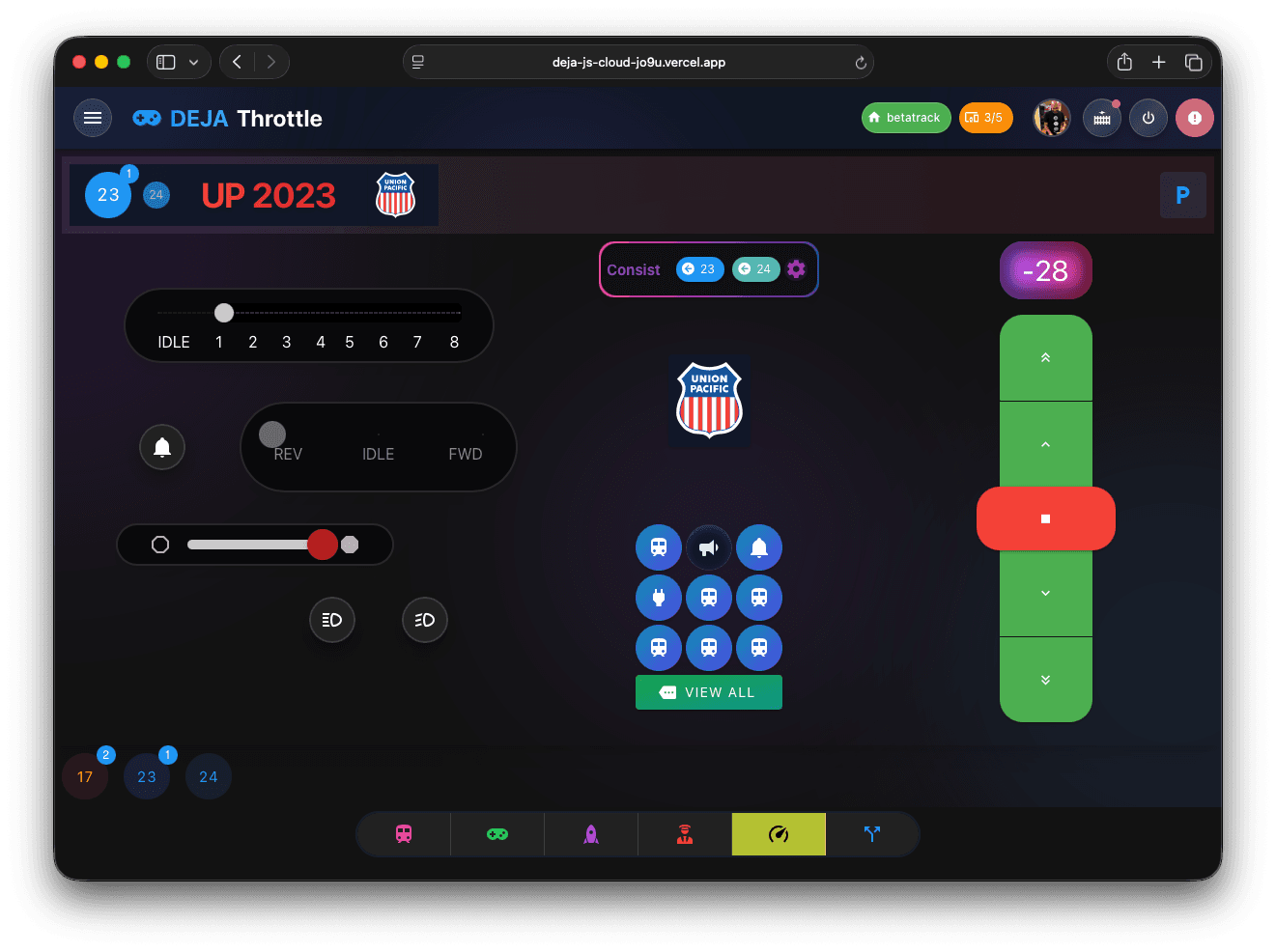
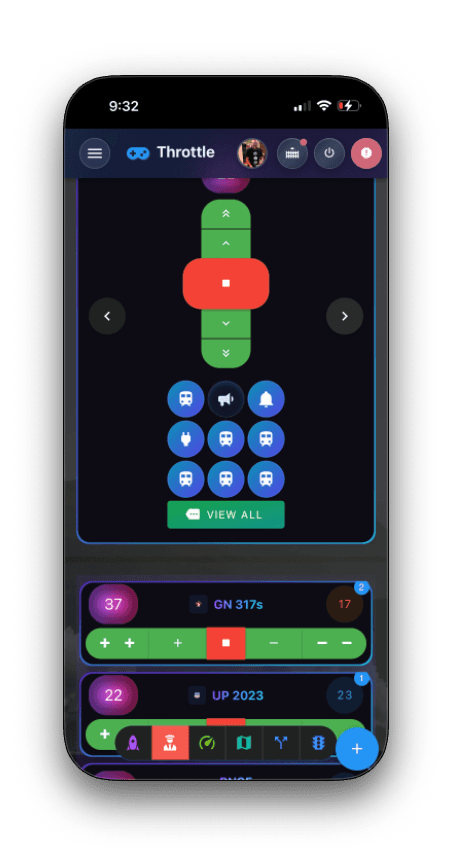
Control Speed & Direction
Everything you need to drive. Set speed, change direction, and stop — all from one screen.
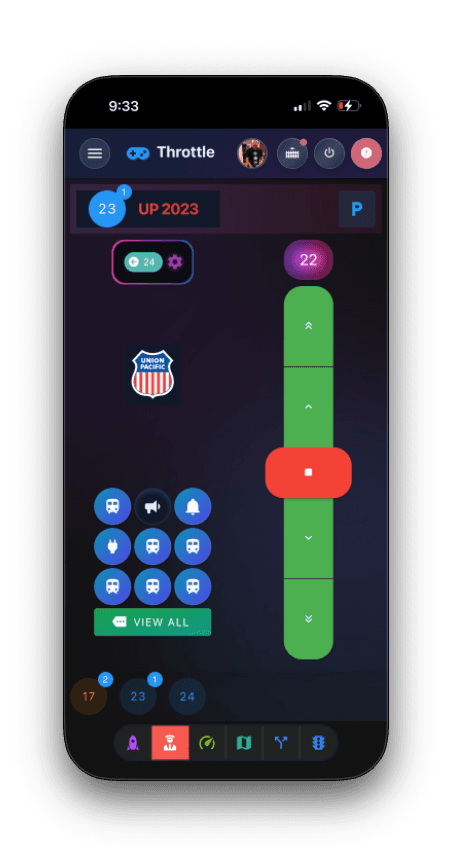
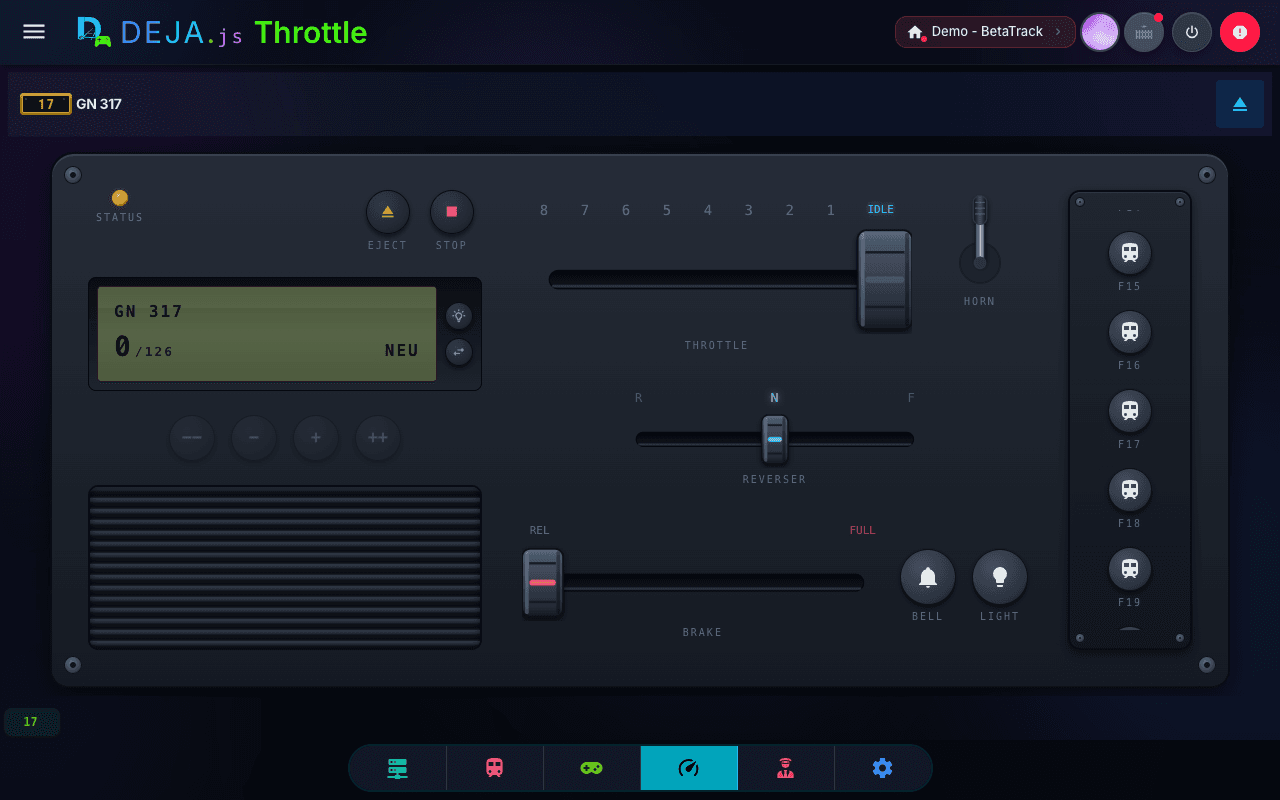
Choose Your Throttle Style
Pick the control style that matches how you operate, from Settings → Throttle → Throttle Type. It applies to every locomotive, and every style shares the same speedometer, function dial, and consist indicator.
Use Functions
Tap the function button to open the speed dial. Toggle lights, horn, bell, and 30+ decoder features — or tap Edit to remap them right from the throttle.
☁️ Configured in DEJA Cloud

Conductor Mode
A three-pane layout designed for large screens. Throttle list, active throttle, and turnouts — all in one view.
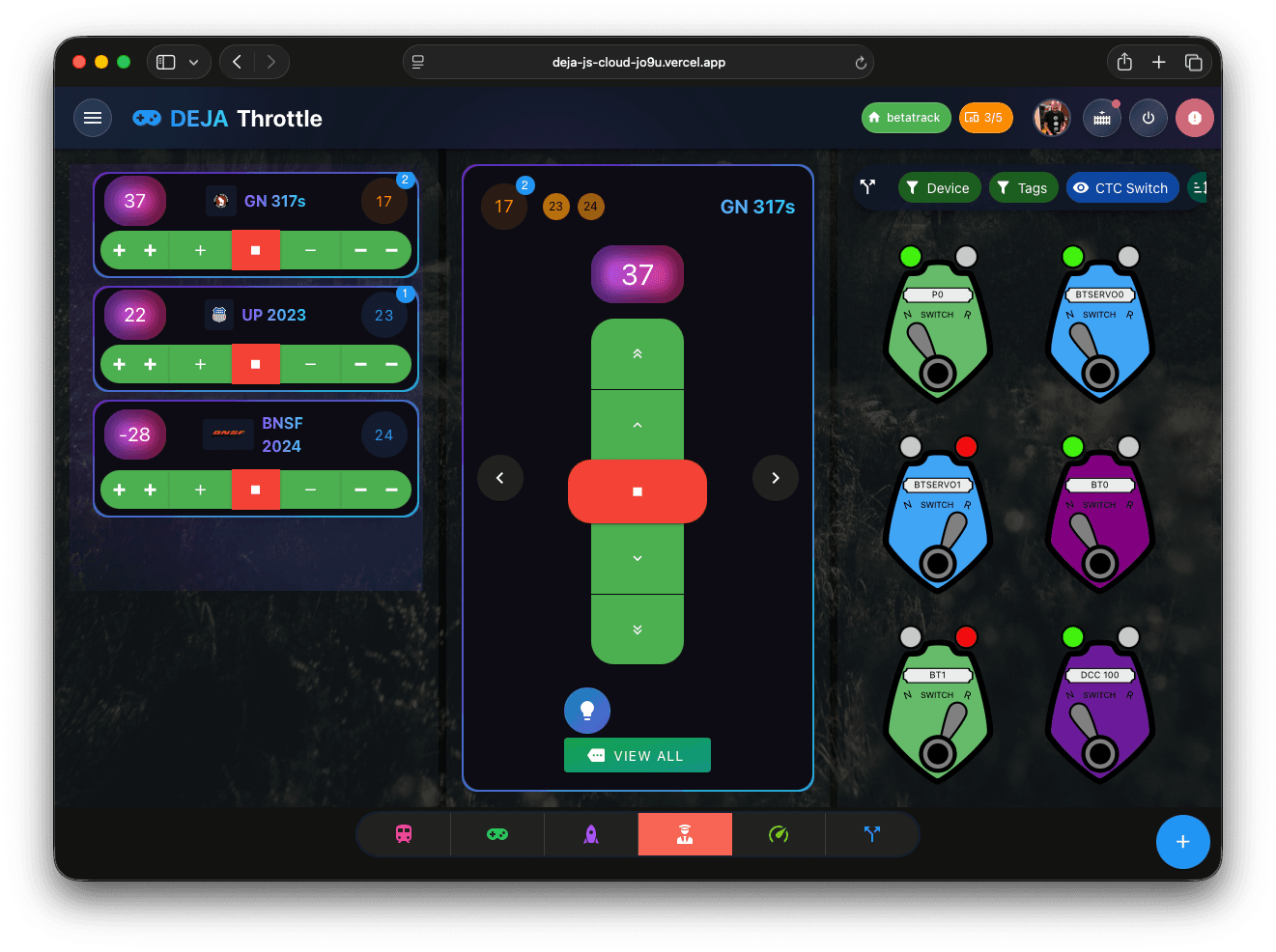
Control Your Entire Layout
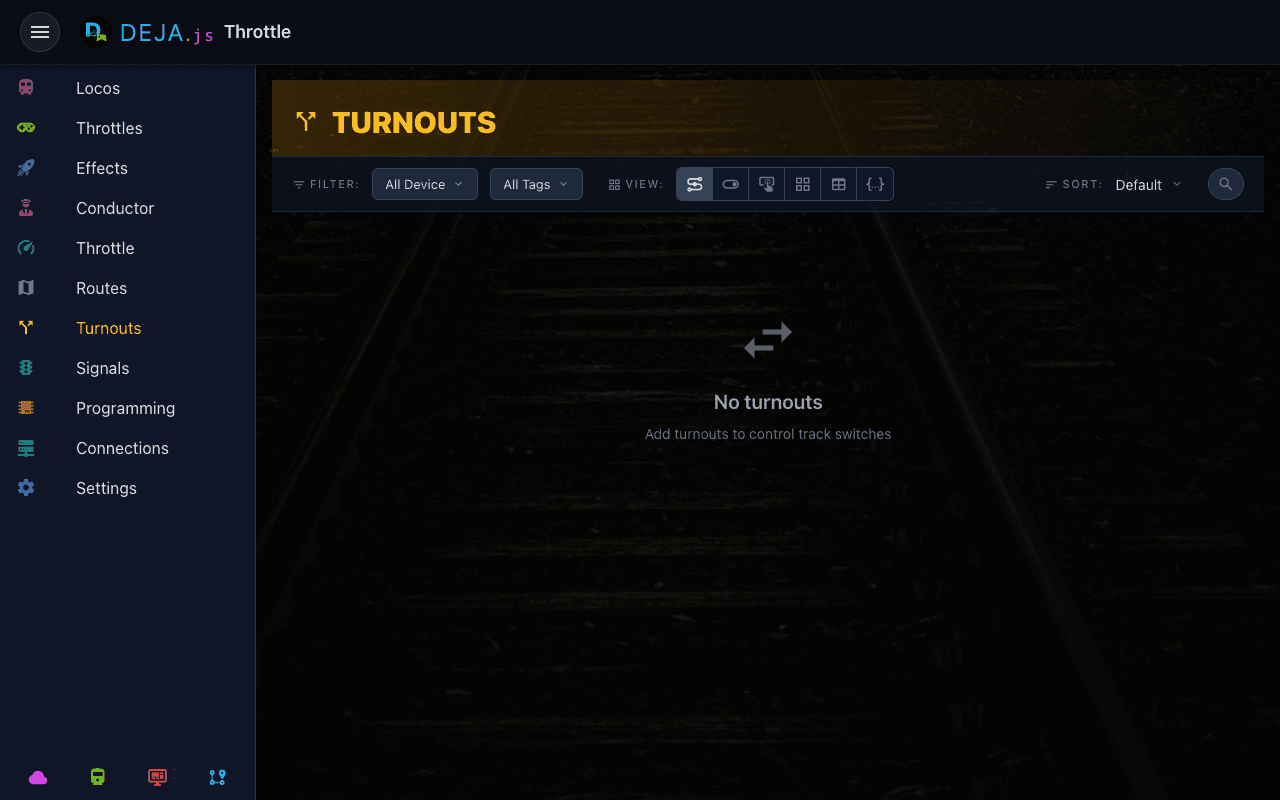
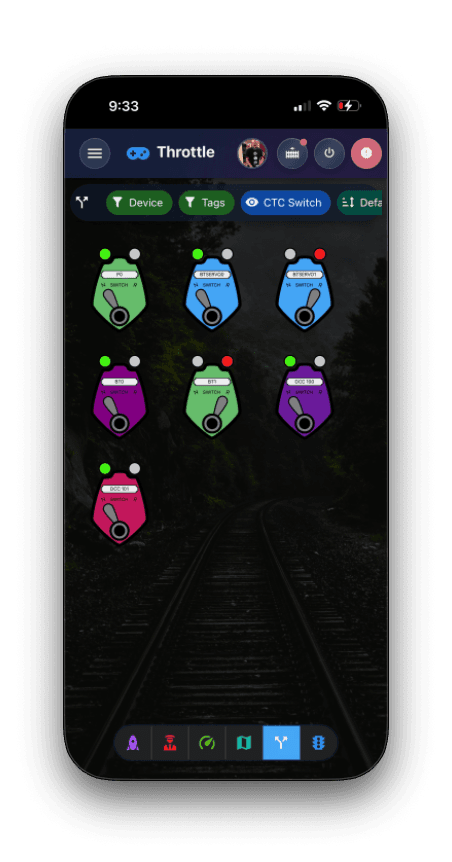
Turnouts
Throw switches with a tap
Control every turnout on your layout. Tap to toggle between straight and divergent — color changes instantly to show state. Multiple view modes let you operate the way you prefer.
Settings
Make Throttle yours. Customize the look, navigation, and connection.